DESIGN
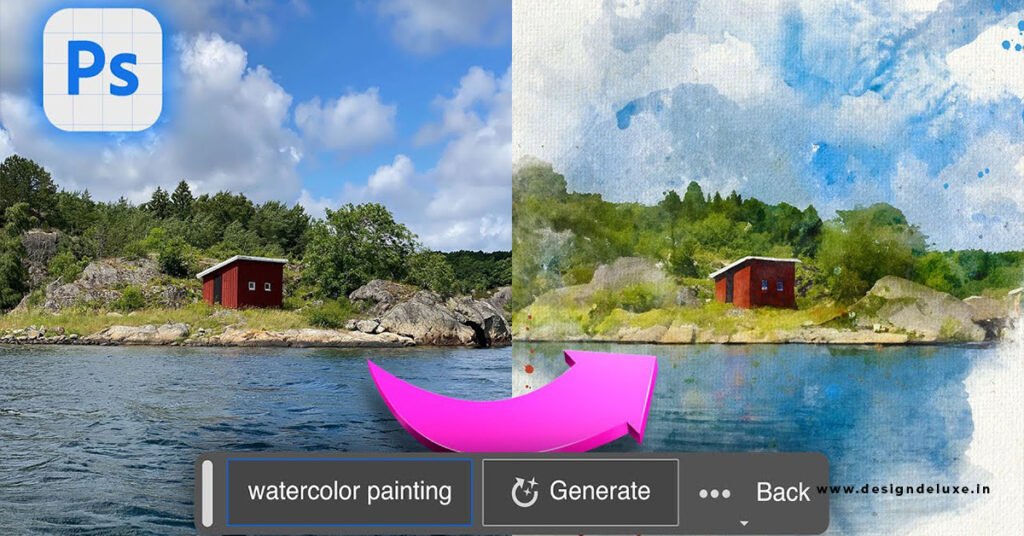
Adobe Photoshop Generative Fill tutorial starts with the fastest way to rewrite any part of an image without destroying the original pixels. Select the area, type what you want (or leave the prompt empty), and Photoshop generates three clean variations on a new generative layer.
Here’s the quick overview:
- Generative Fill uses Adobe Firefly models (and partner models) to add, remove, or replace content inside a selection.
- It stays non-destructive—everything lives on its own layer.
- Works best when you give the AI clear context or a reference image.
- Available in the latest Photoshop desktop versions included with any Creative Cloud plan that unlocks generative features.
Master this one tool and you cut hours off compositing, object removal, and background expansion.
Why Adobe Photoshop Generative Fill Tutorial Skills Matter in 2026
Old-school content-aware fill still exists, but it often leaves smudges or repeated patterns. Generative Fill reads the surrounding lighting, perspective, and texture, then invents new pixels that actually match.
In my experience, the biggest jump comes when you stop treating it like a magic wand and start treating it like a smart assistant. Tight selections plus specific prompts beat vague ones every time. The result feels native instead of pasted-on.
You need an active Adobe Creative Cloud subscription that includes generative credits. Creative Cloud Pro gives you unlimited standard generations and a healthy pool for premium models. If you only have a single-app Photoshop plan, watch your monthly credit count—partner models cost more.
Step-by-Step Adobe Photoshop Generative Fill Tutorial
Follow these exact steps in Photoshop 2026 (v27 or later).
- Open your image and make a selection.
Use the Lasso, Object Selection, or Selection Brush. Leave a little breathing room around the edges so the AI can blend cleanly. - Click Generative Fill in the Contextual Task Bar that appears under the selection.
(If the bar is missing, turn it on under Window > Contextual Task Bar. You can also go to Edit > Generative Fill.) - Choose your model.
Firefly Fill & Expand handles most everyday jobs. Firefly Image 5 gives sharper detail. Partner models like FLUX or Gemini appear in the same dropdown when available. - Type a prompt or leave it blank.
Blank prompt = Photoshop fills based only on surrounding context (perfect for object removal or seamless patches).
Prompt example: “modern wooden desk with a small potted plant and soft morning light.” - Hit Generate.
Three variations appear in the Properties panel. Click any thumbnail to preview it on the canvas. Click Generate again for three more. - Refine if needed.
Use Generate Similar on your favorite result, or add a Reference Image (upload a photo that shows the exact style or object you want). Mask the edges of the generative layer if the blend needs a final touch.
That’s the core workflow. Once muscle memory kicks in, the whole process takes under a minute.
Best Prompts and Model Choices for Clean Results
| Task | Recommended Model | Prompt Style | Credit Note |
|---|---|---|---|
| Object removal / background patch | Firefly Fill & Expand | Leave blank or “seamless background matching surroundings” | Usually 1 credit or unlimited on Pro |
| Adding realistic objects | Firefly Image 5 or FLUX | Specific + lighting + perspective (“red ceramic mug on wooden table, soft side light”) | Higher for partner models |
| Style-matched additions | Any + Reference Image | Short prompt + upload reference | Varies by model |
| Expanding canvas edges | Generative Expand (related tool) | Leave blank after cropping outward | Standard rate |
Keep prompts short and descriptive. Mention lighting, material, and camera angle when it matters. Avoid long sentences packed with every detail—the AI works better with focused instructions.
Common Mistakes & How to Fix Them
Most people trip on the same four issues.
Selection too tight.
The AI has no room to blend. Fix: expand the selection by 10–20 pixels before generating.
Vague or contradictory prompts.
“Make it better” does nothing useful. Fix: describe the exact object, material, and lighting you want.
Ignoring the generative layer.
You rasterize it too early and lose the ability to switch variations. Fix: leave it as a generative layer until the project is finished.
Burning credits on the wrong model.
Partner models look impressive but cost more. Fix: start with Firefly Fill & Expand for everyday work. Switch only when the standard model fails.
What I’d do if a generation looks off: regenerate twice with slightly different wording, then mask the best result and hand-paint any remaining edges. AI does 80 percent of the heavy lifting; your eye finishes the job.
Advanced Tips Once You Master the Basics
Use multiple smaller selections instead of one giant area. The AI stays more accurate.
Combine Generative Fill with Harmonize (under Image) when you drop a generated object into a scene—it matches color and light automatically.
For consistent branding, keep a small set of reference images in a Creative Cloud Library so you can pull the same style every time.
If you’re working across the full suite, remember that the same Firefly engine powers Generative Shape Fill in Illustrator and similar tools in Express. Skills transfer.
This single feature is one of the strongest reasons many designers stay inside the Adobe Creative Cloud: Master Every Design Tool ecosystem—everything stays connected and commercially safe.
Key Takeaways
- Generative Fill lives in the Contextual Task Bar after any selection.
- Blank prompts work great for removal and seamless fills; specific prompts shine for adding objects.
- Always work on a generative layer so you can swap variations later.
- Firefly models are cheapest and most consistent for everyday work.
- Reference images dramatically improve style matching.
- Credits reset monthly—track usage if you’re on a limited plan.
- Practice on real client files, not stock photos. Real lighting and perspective teach the tool faster.
Open Photoshop right now, grab any photo with something you want to remove or add, and run through the six steps above. The first clean result will convince you faster than any tutorial.
FAQs
Does Adobe Photoshop Generative Fill tutorial work the same on the web and mobile versions?
Desktop remains the most complete experience. Photoshop on the web and mobile support core Generative Fill, but model selection and reference-image options are more limited.
How many generative credits does one Generative Fill use?
Standard Firefly models usually cost 1 credit (or unlimited on Creative Cloud Pro). Partner models and higher-resolution Firefly Image 5 cost more—check the current rate in your account before heavy sessions.
Can I use Generative Fill results commercially?
Yes. Content generated with Adobe Firefly models is designed to be commercially safe. Partner models follow their own licensing—review the terms for the specific model you choose.