DESIGN
Figma AI Features Tutorial :
Figma AI features have moved from experimental add-ons to everyday production tools. If you’re a beginner or intermediate designer still doing everything by hand, this is the practical walkthrough you need.
These capabilities sit at the center of Design Automation: AI Tools Changing the Industry. They turn repetitive production into directed work so you spend more time on decisions and less time on busywork.
What’s Available Right Now
Figma splits its AI into a few clear pieces:
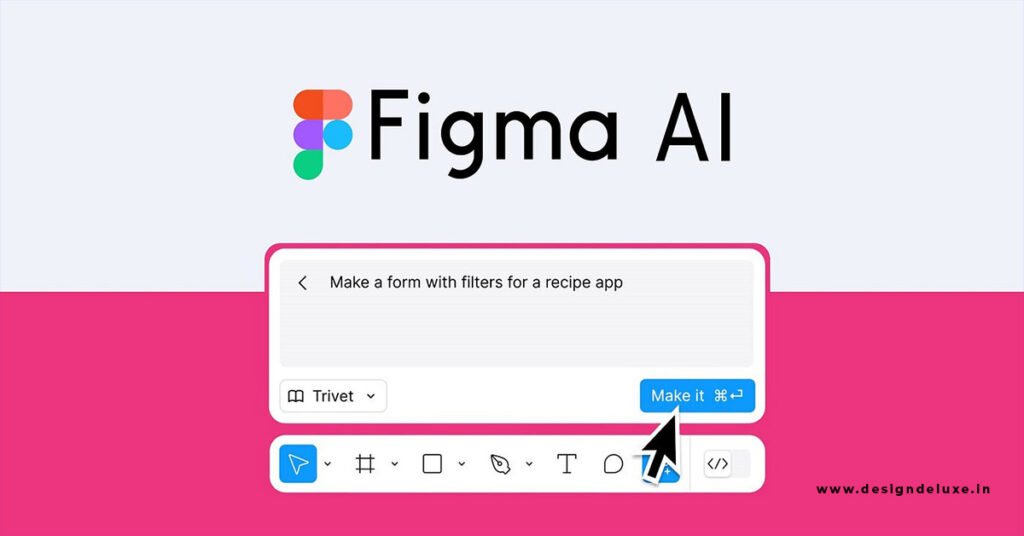
- The Figma agent — conversational AI that lives inside your design files. You talk to it on the canvas or in a sidebar. It generates layouts, edits existing work, applies your design system, renames layers, and handles other chores.
- Figma Make — a separate prompt-to-app environment. You describe a flow or drop in frames and get a working, code-backed prototype or small web app you can click through and refine.
- Individual AI tools — focused actions (rename layers, replace content, generate images, etc.) that the agent can call automatically.
- Code layers (open beta) — real running code sitting on the design canvas so prototypes feel interactive without leaving Figma.
- Specs — Markdown containers on the canvas that hold design intent, guidelines, and context for both humans and agents.
- MCP connections — let external coding agents read your Figma context and write back.
Access depends on your seat. Full seats with edit rights get the full editing power. View, Dev, or Collab seats can usually chat but not change the file. AI uses a shared credit system across features.
How to Use the Figma Agent — Step by Step
- Open any design file where you have edit access.
- Click Agents in the left navigation or press
Cmd/Ctrl+Enterto open the on-canvas chat. You can also open the persistent sidebar. - Add context. Select frames, attach other Figma files, or reference components and variables with
@. The more relevant context you give, the tighter the results. - Write a clear prompt. Treat it like a junior designer: state the goal, constraints, and style.
Example: “Generate three mobile onboarding screens for a fitness app. Use our primary blue, rounded buttons from the design system, and include a skip option on the first two screens.” - Review the output. The agent works directly on the canvas. Accept, reject, or follow up with tighter instructions.
- Use it for cleanup and systems work. Ask it to rename layers consistently, apply auto-layout, document components, or generate variations that stay on-brand.
Start a new chat when the conversation drifts. Chats in shared files are visible to other Full-seat editors by default (as of mid-2026).
Getting Started with Figma Make
- Open Figma Make (it’s its own file type).
- Start from a blank canvas or import frames from a Design file.
- Describe the flow in plain language.
Example: “Create a multi-step onboarding: welcome → permissions → profile setup → success. Include back navigation and a skip option.” - Make generates screens, interactions, and transitions. You get a live preview and an editable code view.
- Refine with follow-up prompts or direct code edits. Connect simple data sources if needed.
- Publish a shareable link or hand the project to a coding agent via MCP when you’re ready for production.
Make is strongest when you already have a design system or clear component library to reference. Without it, results stay more generic.
Practical Tips That Actually Work
- Feed the agent your real components and variables. It performs better when it can pull from the library instead of inventing styles.
- Use Specs to lock in guidelines. Drop a Markdown file or create a Spec on the canvas so both you and the agent share the same rulebook.
- Keep prompts short and specific at first, then iterate. One good follow-up often beats a long initial request.
- Watch your AI credits on heavy days. Complex multi-step requests cost more than simple renames.
- Always review. AI drafts; you decide what ships.
- Combine tools: generate structure with the agent or Make, then polish craft by hand.
In my experience, the biggest jump comes after one full project where you force yourself to start every new screen with the agent instead of a blank frame. The second project feels natural.
Quick Comparison of Core Features
| Feature | Best For | Output Type | Seat Requirement | Status (Oct 2026) |
|---|---|---|---|---|
| Figma Agent | In-file generation & edits | Editable design layers | Full seat for edits | Generally available |
| Figma Make | Functional multi-step prototypes | Code-backed apps | Available on paid plans | Shipped |
| Code Layers | Interactive prototypes on canvas | Running code on canvas | Full seat | Open beta |
| Specs | Shared context & guidelines | Markdown + canvas refs | Paid plans | Open beta |
| Individual tools | Quick bulk actions | Targeted layer changes | Full seat | Available via agent |
Common Pitfalls to Avoid
Prompting without context produces pretty but off-brand results. Always attach or reference the system.
Expecting perfect first-pass output leads to frustration. Plan for a generate → review → refine loop.
Spreading work across too many AI tools without a single source of truth creates inconsistency. Keep Design files as the home base.
Ignoring seat and credit limits can stop you mid-flow. Check your plan before a big generation day.
These Figma AI features are one of the clearest examples of Design Automation: AI Tools Changing the Industry in daily practice. They remove the production drag so intermediate designers can move faster into problem-solving and craft.
Start with the agent on your next real project file this week. Generate one set of screens, clean them up, and measure the time difference. That single test usually shows exactly where the tools fit your workflow.
Key Takeaways
- The Figma agent is the everyday workhorse for generating screens, applying design systems, and cleaning up files directly on the canvas.
- Figma Make turns prompts or existing frames into clickable, code-backed prototypes you can refine and share.
- Always feed the agent real components, variables, and Specs for on-brand results.
- Full seats unlock editing power; other seats can chat but not change files.
- AI credits are shared across features—complex multi-step requests cost more.
- Treat every AI output as a strong first draft that still needs your judgment and polish.
- Start small: use the agent on one real project this week and measure the time you save.
- These tools sit at the heart of Design Automation: AI Tools Changing the Industry by shifting effort from production to decisions.
The real power of Figma’s AI features shows up when you stop treating them as party tricks and start folding them into daily files. You keep the taste and the strategy. The tools handle the volume. Open a design file, prompt the agent once, and see how quickly the blank-canvas friction disappears. That single habit compounds fast.
FAQs
How do I access the Figma agent if I don’t see the Agents button?
You need a Full seat and edit access to the file (or any Draft file). On shared files, View/Dev/Collab seats can chat but cannot make edits. Check your plan and seat type in account settings, then try Cmd/Ctrl + Enter or the left navigation.
Does Figma Make replace traditional prototyping in Design files?
No. Make is best for functional, multi-step flows and code-backed prototypes you want to click through or hand off. Keep Design files and the agent for precise visual craft, systems work, and collaboration. Many teams use both in the same project.
Will using Figma AI features burn through my credits quickly?
Simple actions like renaming layers or small edits cost little. Multi-screen generation and complex Make prototypes use more. Monitor usage in your account, start with targeted prompts, and refine iteratively instead of regenerating entire flows from scratch.