Social Media Advertising
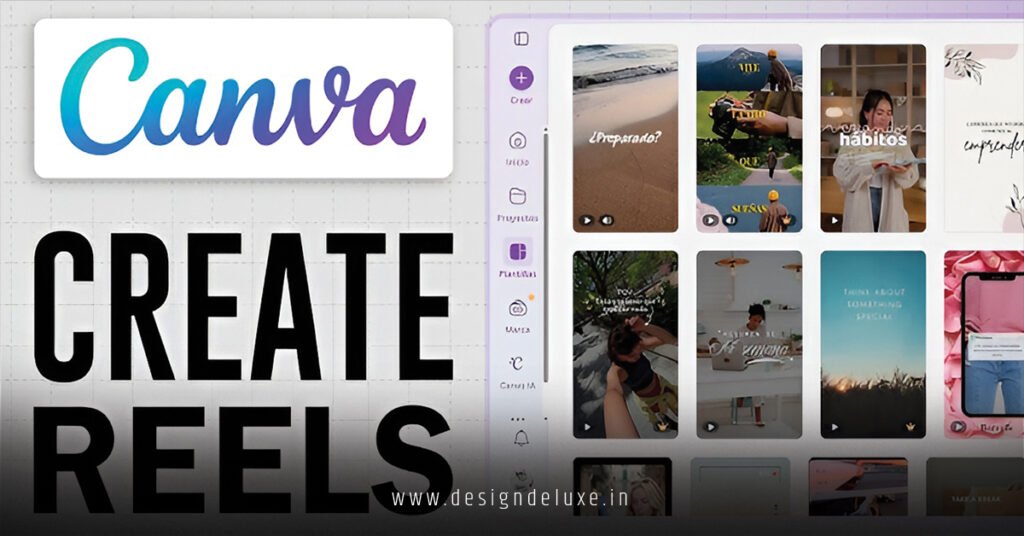
Canva Reels templates tutorial turns beginners into efficient content creators who pump out scroll-stopping vertical videos in minutes instead of hours.
This hands-on guide walks you through everything: finding templates, customizing them, adding pro touches, and exporting ready-to-post Instagram Reels. No steep learning curve. No expensive software.
- What you’ll learn: Exact steps to create polished Reels using Canva’s 2026 video tools.
- Why it works: Reels drive massive reach. Templates give you speed plus professional polish.
- Time savings: Most agents and small business owners finish a Reel in 10–20 minutes once they have the process down.
- Who this helps: Real estate pros, coaches, local businesses—anyone posting short video content.
- Pro move: Combine strong visuals with your branding for instant recognition.
Canva Reels templates tutorial makes short-form video accessible. Pair your finished Reels with standout Instagram Reels cover design templates for small businesses so your grid looks intentional and clickable.
Why Canva Dominates Reels Creation in 2026
Canva’s video editor handles vertical 1080×1920 formats perfectly. Built-in templates, animations, transitions, and trending audio keep everything inside one tab. No juggling apps.
Here’s the thing: You don’t need to film yourself on camera. Many high-performing Reels use photos, text animations, stock footage, and voiceovers.
In my experience, agents who batch five Reels in one sitting post more consistently and see better engagement.
Step-by-Step Canva Reels Templates Tutorial
Follow this exact flow.
- Start in the right format
Log into Canva. Search “Instagram Reels” or “Reels.” Pick the 1080×1920 vertical template. This locks correct dimensions automatically. - Choose your starting template
Browse hundreds of free and Pro templates. Filter by style: minimalist, bold, real estate, tutorial, product demo. Click “Customize this template.” - Replace media
Upload your photos or videos. Drag them into timeline slots. Trim clips by dragging edges. Use Magic Studio AI to generate or enhance footage if needed. - Add and animate text
Create hooks in the first 3 seconds. Big, bold text works best. Apply entrance animations—fade, pop, slide. Time them to match your narration or music beat. - Drop in transitions and effects
Smooth cuts between scenes. Use page turns, zooms, or subtle fades. Keep it clean—overdoing effects looks amateur. - Layer audio
Search Canva’s library for trending sounds or upload your own. Add voiceover by recording directly in Canva. Adjust volume so music sits under your voice. - Polish with brand elements
Insert your logo, colors, and fonts. Keep on-screen text readable. Add subtle brand watermark if desired. - Preview and export
Play full screen. Check timing on mobile. Download as MP4 at highest quality. Post directly to Instagram from Canva if connected.
What would your feed look like if every Reel matched your brand and converted viewers into DMs?
Comparison of Canva Reels Approaches
| Approach | Time Needed | Skill Level | Best For | Output Quality |
|---|---|---|---|---|
| Blank Canvas | 30–45 min | Intermediate | Full control | Highest |
| Ready Template | 10–20 min | Beginner | Speed | Very High |
| AI Magic Design | 5–15 min | All levels | Quick ideas | High (with tweaks) |
| Batch Duplication | 15 min per extra | Beginner+ | Series content | Consistent |
Common Mistakes & How to Fix Them
- Weak first 3 seconds. Fix: Lead with a big question, surprising stat, or bold visual hook.
- Text too small or too long. Fix: Use 3–7 words max per frame. Scale up dramatically.
- Bad timing and pacing. Fix: Sync animations to music beats. Shorten clips aggressively.
- No brand consistency. Fix: Import elements from your branding kit early.
- Ignoring captions. Fix: Auto-generate or manually add large subtitles—most watch without sound.
- Overusing trends. Fix: Put your unique spin on them instead of copying verbatim.
The kicker is this: perfect editing loses to consistent posting every single time.
Advanced Tips for Better Results
Use Canva’s Bulk Create for multiple versions of one Reel. Experiment with photo bursts and collage styles for real estate walkthroughs. Test different thumbnail/cover designs so your profile grid pops.
Fresh analogy: Think of Canva Reels templates like a professional kitchen. The tools and ingredients sit ready—you just decide the recipe and plating.
Refresh templates every few months to stay on trend without reinventing your style. Check Canva’s official beginner guide to Instagram Reels for more editor tricks.
Key Takeaways
- Canva Reels templates tutorial gives fast, professional results with zero steep learning curve.
- Always start with the correct vertical dimensions.
- Hook viewers immediately and keep text large and timed well.
- Brand every Reel consistently for recognition.
- Mix your own media with smart animations and trending audio.
- Batch create to maintain momentum.
- Test covers and thumbnails—visuals drive clicks.
- Post regularly. Volume plus quality beats perfection.
Master this workflow and short video stops feeling like extra work. It becomes your most reliable lead and engagement tool.
Open Canva now, search Instagram Reels, pick one template, and build your first one in the next 15 minutes. You’ll be hooked.
FAQs
Is Canva free for creating Reels templates?
Yes. The free plan handles most needs. Pro unlocks more premium templates, AI tools, and background removal for faster work.
How long should Reels be when using Canva Reels templates?
15–30 seconds performs best for most niches. Keep under 90 seconds unless delivering detailed tutorials.
Can I use these Canva Reels for small businesses beyond real estate?
Absolutely. The same templates and process work for coaches, e-commerce, local services—any business posting on Instagram. Pair them with Instagram Reels cover design templates for small businesses for a cohesive look.