Artificial IntelligenceDESIGN
Best AI design tools for beginners share one trait: they get you from blank screen to usable design in minutes, not hours. That’s the whole pitch. And in 2026, the gap between “overwhelming pro software” and “beginner-friendly AI tool” has basically closed.
Quick overview before we dig in:
- What they do: Generate layouts, graphics, social posts, logos, and prototypes from text prompts or templates.
- Who they’re for: Solopreneurs, students, small business owners, junior designers — anyone without years of Illustrator muscle memory.
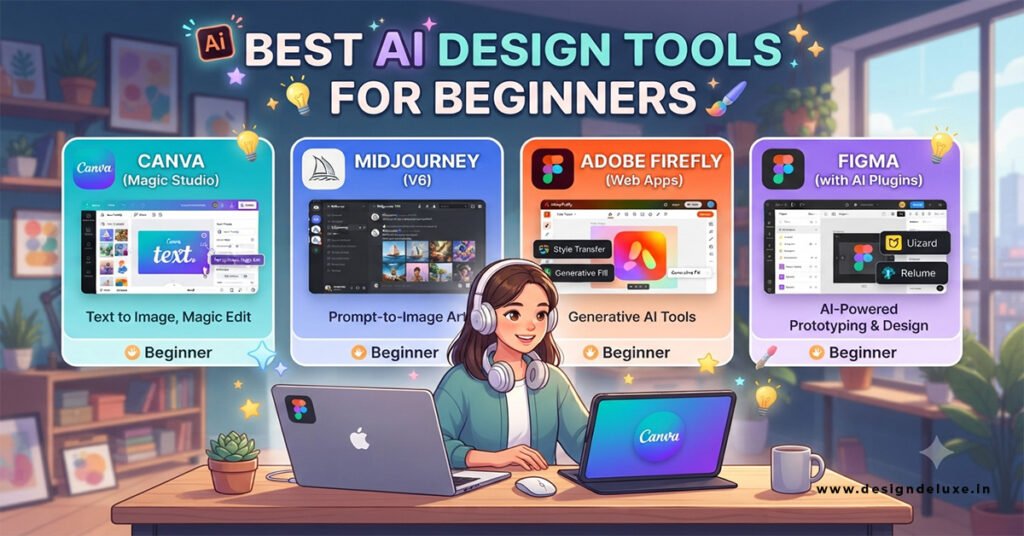
- Top picks right now: Canva Magic Studio, Adobe Express/Firefly, Figma AI, and Microsoft Designer.
- Cost range: Free tiers exist on nearly all of them; paid plans run roughly $10–$20/month for individuals.
- The real value: Speed and confidence. Not perfection. You still need a human eye for the final polish.
If you read our breakdown of AI-Generated Design 2026: Future of Creative Work, you already know the bigger trend — AI isn’t replacing designers, it’s replacing the blank page. This guide is the practical follow-up: which tools actually deliver on that for someone just starting out.
Why Beginners Need a Different Toolset Than Pros
Here’s the thing nobody tells you upfront: professional design software was never built for beginners. Photoshop has a learning curve like a cliff face. Figma assumes you already know design logic.
AI design tools flip that. They assume you know nothing about bezier curves or kerning — and they fill that gap with automation and templates. That’s not a dumbed-down version of design. It’s a different entry point entirely.
What usually trips beginners up isn’t the software. It’s picking the wrong tool for the job and getting frustrated three tabs deep into a confusing interface.
The Best AI Design Tools for Beginners, Ranked by Use Case
| Tool | Best For | Starting Price | Beginner Friendliness |
|---|---|---|---|
| Canva (Magic Studio) | Social media, presentations, marketing graphics | Free; Pro ~$15/month | Very high — drag-and-drop, huge template library |
| Adobe Express | Quick branded content, video + image combos | Free; paid tiers from ~$10/month | High — simplified version of Adobe’s AI stack |
| Microsoft Designer | Fast image generation, Office-integrated graphics | Free with Microsoft 365 | High — minimal setup needed |
| Figma (AI features) | UI/UX prototyping, app and website mockups | Free tier; paid seats from ~$12/month | Moderate — some design logic required |
| Adobe Firefly | Custom AI image generation, commercial-safe assets | Free trial; from ~$9.99/month | Moderate — more creative control, steeper prompting curve |
Notice the pattern? The simpler the output format (a social post vs. a full app interface), the gentler the learning curve. Makes sense when you think about it.
1. Canva — The Default Starting Point
Canva’s Magic Studio bundles text-to-design generation, background removal, one-click resizing, and brand kits into a single dashboard. For pure beginners, it’s hard to beat. You type what you want, pick from generated layouts, and tweak from there.
In my experience, Canva is where I point almost every non-designer client who wants to make their own marketing material without hiring anyone. It just works.
2. Adobe Express — Adobe’s Friendlier Sibling
Adobe Express strips away the complexity of Photoshop and Premiere while still tapping Adobe’s Firefly-powered AI underneath. Good for beginners who eventually want to graduate into heavier Adobe tools without relearning everything from scratch.
3. Microsoft Designer — The Sleeper Pick
A lot of beginners overlook this one. If you already live in Microsoft 365, Designer generates image concepts and layouts fast, with zero extra subscription if you’ve got an existing Microsoft account.
4. Figma’s AI Features — For the UI-Curious Beginner
This is the one tool here with real range beyond marketing graphics. Figma’s AI capabilities now support rapid wireframing and prototyping. It’s a bigger leap than Canva, but if your end goal is app or website design, starting here early pays off.
5. Adobe Firefly — When You Need Original Imagery
Firefly generates custom images and is built with commercial licensing in mind, which matters if you’re producing anything for paying clients. It’s a touch more technical than Canva — prompting takes practice — but the payoff is more original-looking output.
Step-by-Step: Choosing and Using Your First AI Design Tool
- Define the output first. Social graphic? Logo? App mockup? The format decides the tool, not the other way around.
- Start with the free tier. Every tool on this list has one. Don’t pay before you know you’ll actually use it weekly.
- Use templates as training wheels. Don’t start from a blank prompt box. Start from a template and ask “what would I change here?”
- Write prompts like instructions, not wishes. “Blue and white minimalist coffee shop logo, geometric” beats “nice logo for my cafe.”
- Generate multiple options. Never settle on the first result. Five to ten variations, minimum.
- Manually adjust before publishing. Spacing, color contrast, text legibility — AI misses these more than you’d expect.
- Save your brand assets. Fonts, colors, logo files — build a kit early so every future design stays consistent.
What I’d tell a total beginner starting today: pick Canva, spend a weekend just playing, and don’t touch a paid plan until the free tier genuinely limits you.
Common Mistakes & How to Fix Them
Mistake 1: Jumping Straight to Advanced Tools
New users sometimes install Figma or Firefly first because it sounds more “professional.” It backfires.
Fix: Start simple. Graduate to complex tools once you understand basic design principles — contrast, hierarchy, whitespace.
Mistake 2: Vague Prompting
“Make it look good” isn’t a prompt. It’s a wish.
Fix: Describe color, mood, style, and composition explicitly every time.
Mistake 3: Publishing the First AI Output
It looks finished. It rarely is.
Fix: Build in a manual review pass — always. Check text accuracy, alignment, and brand consistency before anything goes live.
Mistake 4: Ignoring Licensing Terms
Free tiers sometimes restrict commercial use. Easy to miss, costly to discover later.
Fix: Read the commercial-use terms on any free plan before using output for client or business work.
Key Takeaways
- Canva, Adobe Express, Microsoft Designer, Figma, and Adobe Firefly lead the best AI design tools for beginners in 2026.
- Pick your tool based on output format first — social graphics, logos, or UI mockups each favor a different platform.
- Free tiers are genuinely usable; don’t rush into paid plans.
- Specific prompts consistently beat vague ones — treat prompting like writing instructions, not wishes.
- Manual review before publishing catches what AI consistently misses.
- Understanding broader shifts like AI-Generated Design 2026: Future of Creative Work helps beginners choose tools that scale with their skills, not just their current project.
Starting out doesn’t require mastering design theory on day one. It requires picking the right tool for the job and giving yourself permission to experiment cheaply before anything’s on the line. Start with Canva, build from there, and let your skills — not your software — set the ceiling.
FAQs
What’s the easiest AI design tool for a complete beginner with zero design experience?
Canva’s Magic Studio. The template-first approach means you’re editing existing layouts rather than starting from nothing.
Do I need to pay for AI design tools to get good results as a beginner?
No. Free tiers on Canva, Adobe Express, and Microsoft Designer cover most beginner needs. Upgrade only once you hit real limits.
How do AI design tools for beginners connect to the broader AI-Generated Design 2026: Future of Creative Work shift?
These tools are the practical entry point into that bigger trend — they let beginners produce professional-looking work today while the underlying technology keeps evolving fast.