DigitalGraphic Designing
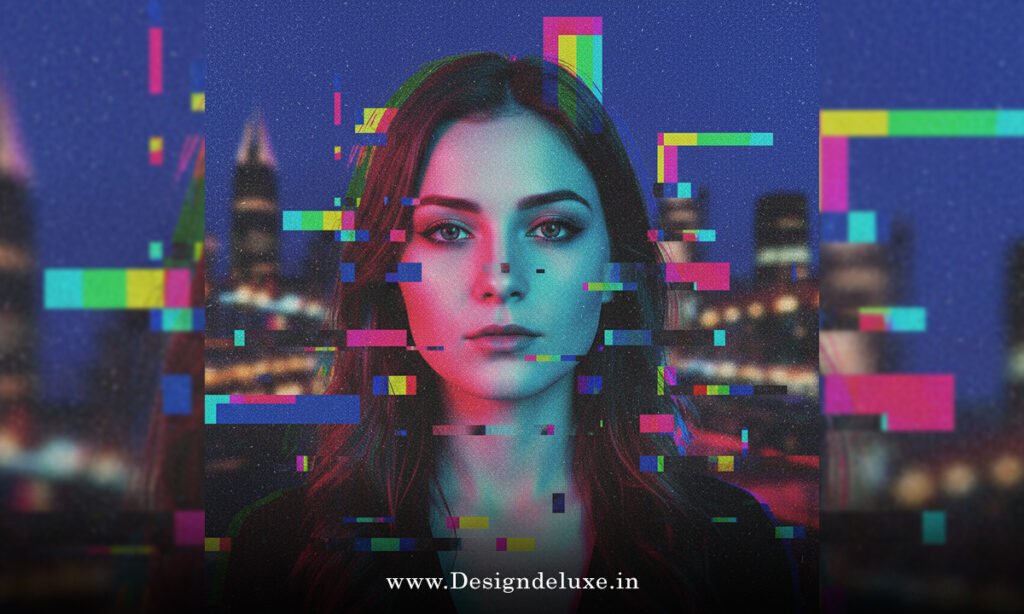
Hey there! Ever stared at a futuristic music video, cyberpunk poster, or edgy social media reel and thought, “Whoa, how do they make that screen look like it’s breaking apart in the coolest way possible?” That’s the magic of how to add digital artifacts glitch effects 2026. In 2026, this aesthetic isn’t just a retro throwback—it’s evolved into a sharp, intentional style that screams digital tension, disruption, and modern chaos. Think pixel corruption, RGB splits, scan lines, and those delicious artifacts that make your content feel alive and unpredictable.
Whether you’re a beginner dipping your toes into video editing or a seasoned creator leveling up your motion graphics, mastering how to add digital artifacts glitch effects 2026 can transform ordinary footage into something hypnotic. In this guide, I’ll walk you through everything step by step, from the basics to pro tips tailored for today’s tools. Ready to glitch out? Let’s dive in.
Why Digital Artifacts Glitch Effects Are Huge in 2026
First off, why bother learning how to add digital artifacts glitch effects 2026 right now? Glitch art has shifted from pure nostalgia to a powerful storytelling tool. In an era where AI generates perfect images, intentional “errors” like digital artifacts add humanity, rebellion, and edge.
Trends show glitch effects blending with subtle distortions—think controlled pixel sorting, chromatic fringing, and data-mosh vibes. They’re perfect for gaming montages, tech ads, music visuals, or even personal branding that wants to stand out. The best part? You don’t need expensive plugins anymore; built-in tools in popular software handle most of it.
Have you ever wondered why a slight RGB shift feels more emotional than clean footage? It’s because glitches mimic real digital failures—buffering, corruption, overload—making viewers feel the “weight” of the content.
Understanding Digital Artifacts and Glitch Basics
Before jumping into tutorials, let’s break down what we’re actually creating when we explore how to add digital artifacts glitch effects 2026.
Digital artifacts are those unintended visual flaws: blocky compression, color bleeding, noise patterns. Glitch effects exaggerate them on purpose—RGB channel offsets (red/cyan fringes), scan lines, pixelation, temporal shifts (like frame repeats), and wave distortions.
Key elements include:
- Chromatic Aberration — Color fringing for that “broken lens” look.
- Datamosh — Smearing motion between frames.
- Noise & Grain — Adding static or VHS-like texture.
- Displacement — Warping pixels randomly.
Analogy time: Think of your clean video as a pristine mirror. Adding glitch effects is like cracking it strategically—each fracture tells a story.
Best Software Options for How to Add Digital Artifacts Glitch Effects 2026
Choosing the right tool makes all the difference. Here’s what’s topping the list in 2026:
- Adobe After Effects — The king for pro motion graphics. No plugins needed for core glitches.
- Adobe Premiere Pro — Great for quick video edits with built-in VR Digital Glitch or effects stacks.
- Photoshop — Ideal for static images or glitch text/posters using channels and filters.
- CapCut — Free, mobile-friendly with one-click glitch presets—perfect for beginners and TikTok creators.
- Wondershare Filmora — AI-powered glitch presets for fast results.
- DaVinci Resolve — Free version rocks for color-graded glitches.
Pro tip: Start with free tools like CapCut if you’re new, then graduate to After Effects for full control.
Step-by-Step: How to Add Digital Artifacts Glitch Effects 2026 in After Effects
After Effects remains the go-to for dynamic, animated glitches. Here’s a beginner-to-intermediate workflow for how to add digital artifacts glitch effects 2026 without plugins.
- Set Up Your Composition
Import your footage, create a new comp (1920×1080, 30fps works great). Drag your clip to the timeline. - Add Basic RGB Split
Duplicate your layer three times (Ctrl+D twice). Name them Red, Green, Blue.
For Red layer: Effects > Channel > Set Channels > Red from Red, turn off Green/Blue.
Offset Red slightly left (Position keyframes). Do the opposite for Blue (right shift). Green stays centered.
Set blend modes: Red to Add, Blue to Add. Boom—classic chromatic glitch. - Introduce Digital Artifacts with Noise
Add an Adjustment Layer (Layer > New > Adjustment Layer).
Apply Effect > Noise & Grain > Noise. Set to 20-40%, Monochromatic off for color noise.
Keyframe intensity for bursts—ramp up during transitions. - Wave Distortion for Organic Glitches
On your main layer, add Effect > Distort > Wave Warp.
Play with Wave Type (Sine), Wave Height (5-15), and animate Wave Width over time for pulsing artifacts. - Scan Lines and Pixelation
Add another Adjustment Layer. Effect > Stylize > Glow for subtle lines, or Turbulent Displace for pixel breakup.
For true artifacts, use Fractal Noise (set to Evolution keyframes) masked to glitch areas. - Animate for Impact
Use keyframes on Opacity, Position, and Effects properties. Short, sharp bursts (0.1-0.3 seconds) feel most “glitchy.” Pre-compose and add wiggle expressions for randomness: position.wiggle(5,20).
Experiment: Duplicate comps for layered glitches—some subtle, some intense.
How to Add Digital Artifacts Glitch Effects 2026 in Premiere Pro
For faster edits, Premiere Pro’s got you covered.
- Import clip to timeline.
- Search Effects for “VR Digital Glitch” or “Glitch.”
- Drag to clip. Adjust parameters: Intensity, Block Load, Scan Lines.
- Keyframe for timed glitches—great for transitions.
- Add Lumetri Color for desaturation bursts or RGB curves to enhance fringing.
Quick hack: Stack multiple glitch effects with blend modes (Overlay/Add) for richer artifacts.
Creating Static Glitch Art: How to Add Digital Artifacts Glitch Effects 2026 in Photoshop
For posters, thumbnails, or text:
- Open image, duplicate layer.
- Go to Channels panel. Select Red channel, apply Filter > Distort > Wave.
- Offset channels slightly (move selection with arrow keys).
- Back to Layers: Add halftone (Filter > Pixelate > Color Halftone) for scan lines.
- Use Displacement Maps or Liquify for warping.
- Add noise (Filter > Noise > Add Noise) and set blend to Overlay.
For text glitch: Duplicate text layers, offset colors, add masks for cuts.
Mobile & Quick Methods: How to Add Digital Artifacts Glitch Effects 2026 on the Go
No computer? No problem.
- CapCut: Import video > Effects > Glitch category. Apply, adjust intensity. Add keyframes for timing.
- Filmora Mobile: Use AI glitch presets—RGB Split, VHS, Chromatic.
- Online tools like Pixlr Glitch Maker for instant image glitches.
These are perfect for social content where speed matters.
Advanced Tips and Common Mistakes to Avoid
Want your glitches to look pro in 2026?
- Timing is everything—sync to beats or cuts.
- Less is more; over-glitching looks amateur.
- Add subtle sound design (static crackles) for immersion.
- Use masks to apply effects selectively.
- Export in high bitrate to preserve artifacts.
Avoid: Random application without purpose, or ignoring color grading—glitches shine with contrast.
Conclusion: Level Up Your Creativity with How to Add Digital Artifacts Glitch Effects 2026
There you have it—a complete roadmap for how to add digital artifacts glitch effects 2026. From After Effects’ precise control to Premiere’s quick wins and Photoshop’s static mastery, you’ve got options for every skill level. The key? Experiment fearlessly, but always tie the glitch back to your story—whether it’s digital anxiety, futuristic vibes, or pure eye candy.
Grab your footage, fire up your software, and start glitching. Your next viral piece might just be one RGB split away. What’s your first project going to be? Drop it in the comments—I’d love to see your chaotic creations!
For more on glitch creation techniques: Adobe Photoshop Glitch Effects, Boris FX Glitch Tutorials, Wondershare Filmora Glitch Editor.
FAQs
What is the easiest way to learn how to add digital artifacts glitch effects 2026 for beginners?
Start with CapCut or Filmora’s built-in presets—they offer one-click glitches with adjustable intensity, perfect for quick results without complex setups.
Which software is best for professional how to add digital artifacts glitch effects 2026 in motion graphics?
Adobe After Effects stands out in 2026 for its no-plugin flexibility, keyframing, and expressions—ideal for animated, layered digital artifacts.
Can I create how to add digital artifacts glitch effects 2026 without paying for software?
Absolutely! Use free tools like CapCut, DaVinci Resolve (free version), or online editors like Pixlr to achieve solid glitch looks with artifacts.
How do I make my glitches look modern and not outdated when following how to add digital artifacts glitch effects 2026 tutorials?
Focus on subtlety—use controlled bursts, pair with clean grading, and incorporate 2026 trends like minimal distortion or hybrid 2D/3D elements.
Why are digital artifacts so popular in how to add digital artifacts glitch effects 2026 techniques?
They add intentional imperfection in a perfect AI world, evoking emotion, tension, and authenticity—perfect for standing out in feeds.